
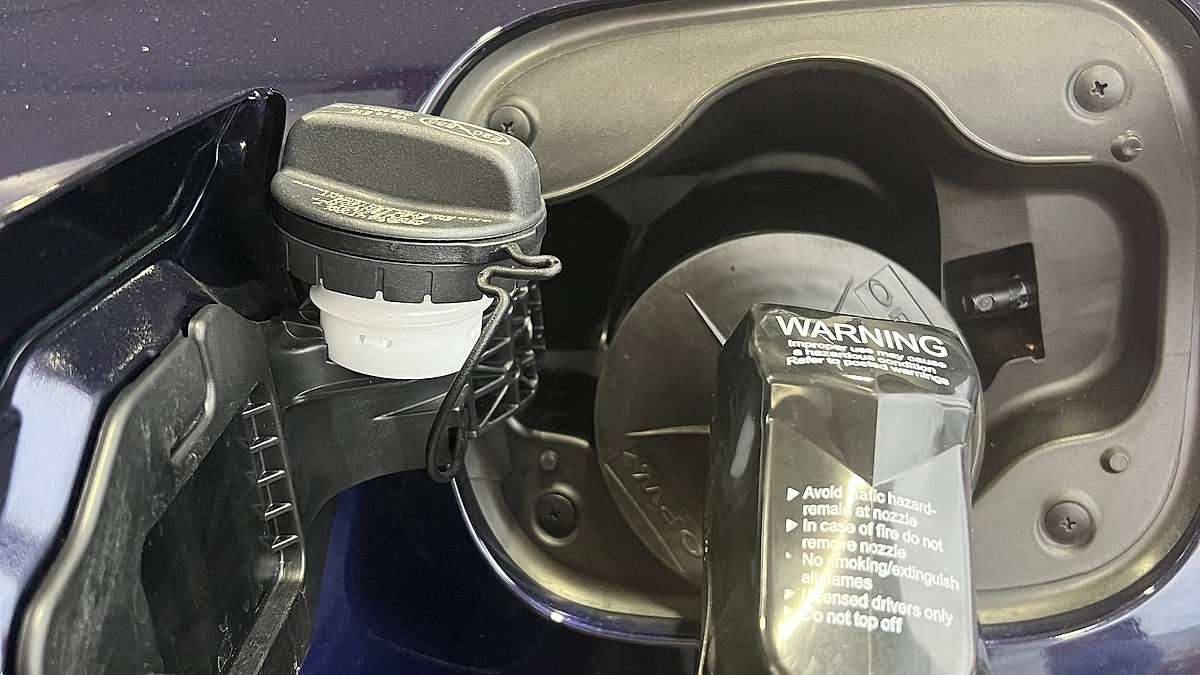

With gas prices up, many consumers are thinking about how they can change or tune their vehicles to squeeze out more MPG. We have a great story that details all of the best ways to maximize your car’s potential right here. However, none of them is as good at saving you money on gas as simply adapting your Google Maps features and a couple of easy habits for maximum fuel efficiency. Let’s dive right in. But before we do, remember, you can use Google Maps with either Android Auto or Apple CarPlay. It’s a free app, and it doesn't show you any ads. It’ll even tell you where the speed traps are on your route.
Google Maps - How To View the Fuel-Efficient Route
When you input a destination to Google Maps, it thinks for a second or two, and then it automatically starts the guidance. The route it chooses will depend on your settings. The default is NOT the most fuel-efficient route, but rather, the fastest. We’ll show you how to change the default in just a moment, but first, look at the bottom left of your screen for the icon that shows two upward-facing arrows side by side. We've shown it in our image below and added a red arrow to make it clear.
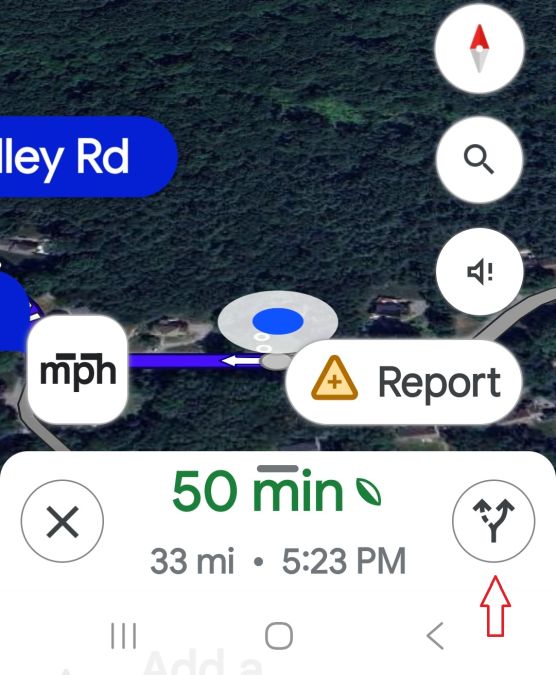
Click that icon, and it will open up alternative routes you can take to get to your destination. This is a great thing to do for many reasons, including to look for the most fuel-efficient route option.
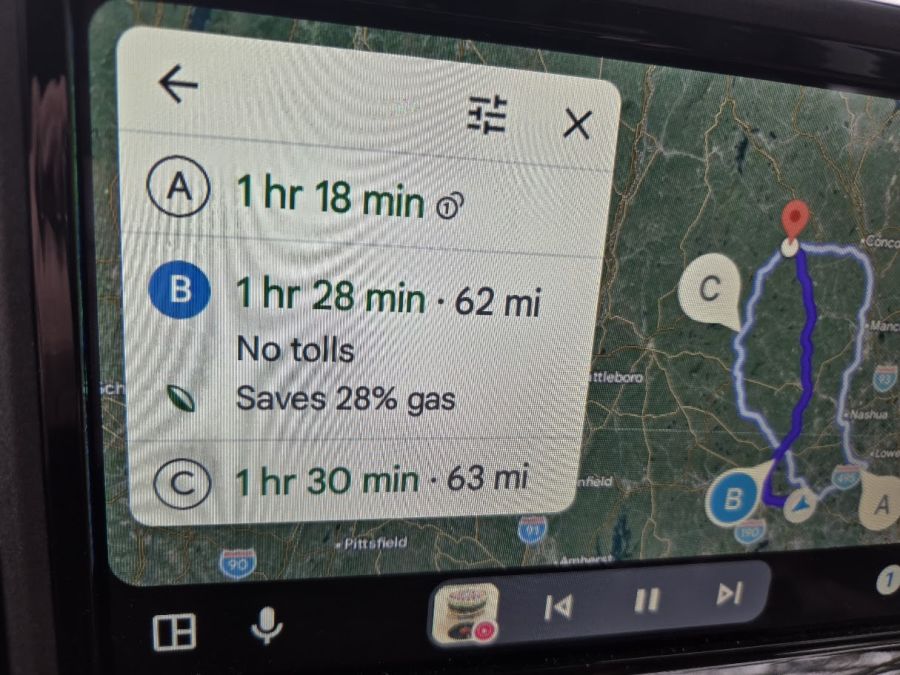
There may be one, two, or three options to get you to your destination. The dark blue one is the default, and it is the route you are on. Look closely, and you may see that the other routes have a slightly longer drive time in miles or longer in minutes. One of those may also be a much better route for fuel efficiency. Our image above shows a route that we selected to show this feature. The route that Google Maps loaded was route A. It's the quickest route. In the image, I have just tapped route B, and it is shown in dark blue. As you can see, the most efficient route, B, saves a whopping 28% on fuel! It adds a few minutes, but it also offers many more services along the route, and we know from experience that it is also the most scenic and relaxing route. Win, win, win. Here’s a pro tip: To select a new route other than the one already shown in blue, tap the route you want twice to switch.
Not every trip has a better or more fuel-efficient option. If you’re just going across town, go the fastest way. However, if you are going to drive for 30 or more minutes, choosing the most fuel-efficient route can save you a lot on gas. Make it a habit, and those savings add up quickly. Here is the menu tree once again for ease of use:
-Input a destination
-Look to the bottom left of the screen for the double upward arrow icon and click it
-View the options available. One may offer better fuel efficiency
-To select a different route (labeled A, B, C, etc.), tap it twice
Google Maps - How To Make Most Efficient Route the Default
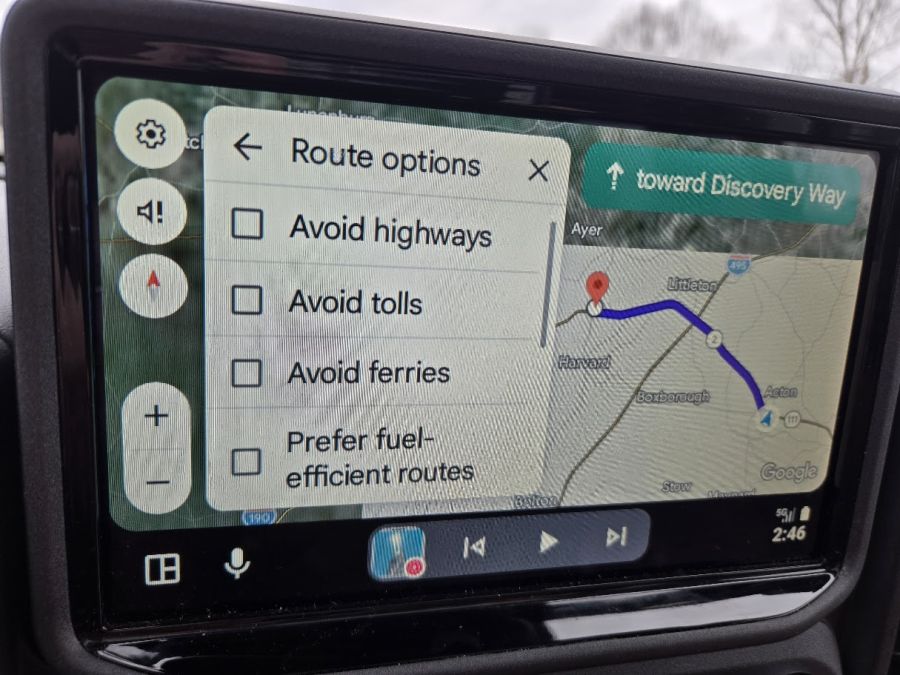
If you wish to change the default setting to Most Efficient Route, the steps are very easy. Do this while you are safely parked. Open Maps on your phone. In the top right of the screen, click open your round profile icon. It will have a picture of you if you have a Google icon loaded. Scroll down to near the bottom of the options and click Settings. Scroll down and select Navigation. Then scroll down to “Prefer fuel-efficient route.” Slide the bar to the right, and you are done. Now, whenever the routes are similar, Google Maps will show you the most fuel-efficient route as the default, and you can still select the other options using the method we described in the first section of our story. Now you are saving gas by default as you travel, and when every minute counts, you can always simply select the Fastest Route.
Here’s that menu tree once more for ease of use:
-Open Google Maps While Safely Parked
-Tap your profile icon in the top right of the screen
-Click Settings
-Click Navigation
-Scroll to Prefer fuel-efficient route
-Slide the selection bar to the right to enable it
Another way to quickly switch to having the Most Efficient route as your default is to use the settings right on the screen when using Google Maps with Android Auto. We've shown that above. Hit the Settings gear icon first to begin.
Google Maps - Tell It What Type of Vehicle You Have
In the above menu tree, if you pause at the Navigation menu and look just under “Prefer fuel efficient route, you will see “Your vehicles.” Tap that to open it. When you do, four Engine Types will pop up. Tap the one that best describes your vehicle type: Electric, Hybrid, Gas, or Diesel. Now Google Maps knows what you are driving, and it will pick routes according to the best energy use for your particular powertrain type. Now you’re really squeezing the last drop of energy out of every trip you take.
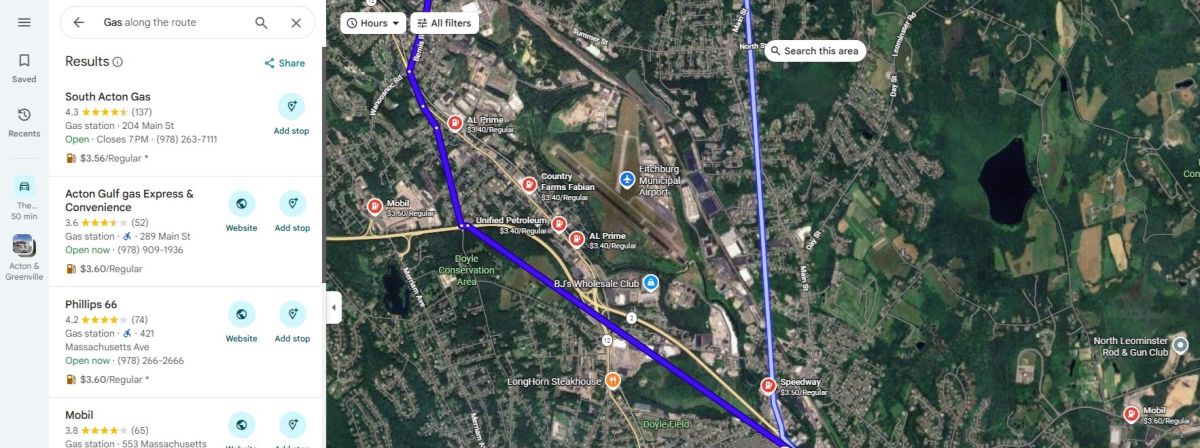
Google Maps - Bonus! Easily Compare Gas Prices On Your Route
We didn't want to name this top as one of the three best Google Maps hacks we think save you money, since we suspect that many Google Maps users already know about it. If you are not aware of it, at the top of the screen, you can click “Gas.” If you do, it will show you all the stations along your route and some nearby. The prices are also shown if you widen the view. If you are stationary using a laptop or tablet, you can get a great look at the prices and the station rating along the left of the screen. We did this on a route we used as an example, and prices on the route ranged from $3.70 to $3.40. That’s about a 9% difference in cost to you. If you saved 28% using our first tip, and you also bought the lowest cost gas on the same trip, your savings would be about 37%. Nothing you can do to your actual vehicle will save you that much gas.
Did you find this helpful? If so, let us know in the comments below. If you have an added tip, please suggest it in the comments so we can all save money on gas.
Images and screenshots of Google Maps by the author.
John Goreham is a 14-year veteran of Torque News. An accomplished writer and a long-time expert in vehicle testing, Goreham also serves as the Vice President of the New England Motor Press Association and has a growing social media presence. He’s also a 10-year staff writer and community moderator for Car Talk. Goreham holds a B.S. in Mechanical Engineering and an undergraduate Certificate in Marketing. In addition to vehicle and tire content, he offers deep dives into market trends and opinion pieces. You can follow John Goreham on X and TikTok, and connect with him on LinkedIn.
Set Torque News as Preferred Source on Google
Follow us today...